> ## Documentation Index
> Fetch the complete documentation index at: https://docs.loopscale.com/llms.txt
> Use this file to discover all available pages before exploring further.
# Deposit to Loopscale Vaults
Depositing into a Loopscale vault is a straightforward process that can be completed in just a few minutes. This guide walks through each step, from connecting a wallet to confirming a transaction.
Once funds are deposited, they begin earning yield according to the parameters of the selected vault. Users can monitor the Vault strategy and their position in real time through the application.
## Supported Wallets
Loopscale supports any wallet that meets Solana Wallet standards, including those listed below. WalletConnect is also available for compatible wallets such as Fireblocks. (Note: Squads multisig wallets are not currently supported.)
* Phantom
* Backpack
* Solflare
* MagicEden
* Trust Wallet
* Brave
* Fireblocks
* Fordefi
## Navigate to Vault
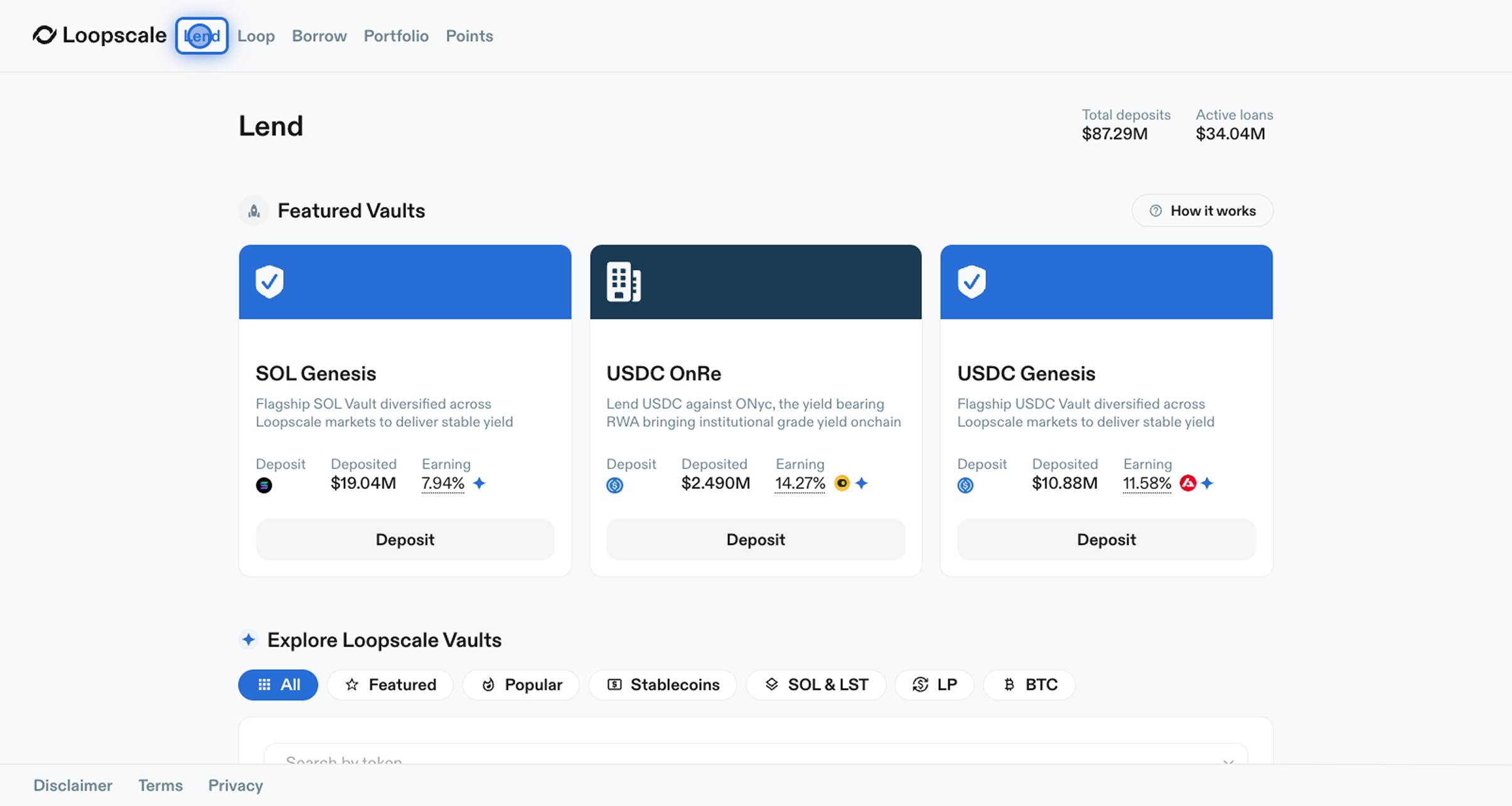
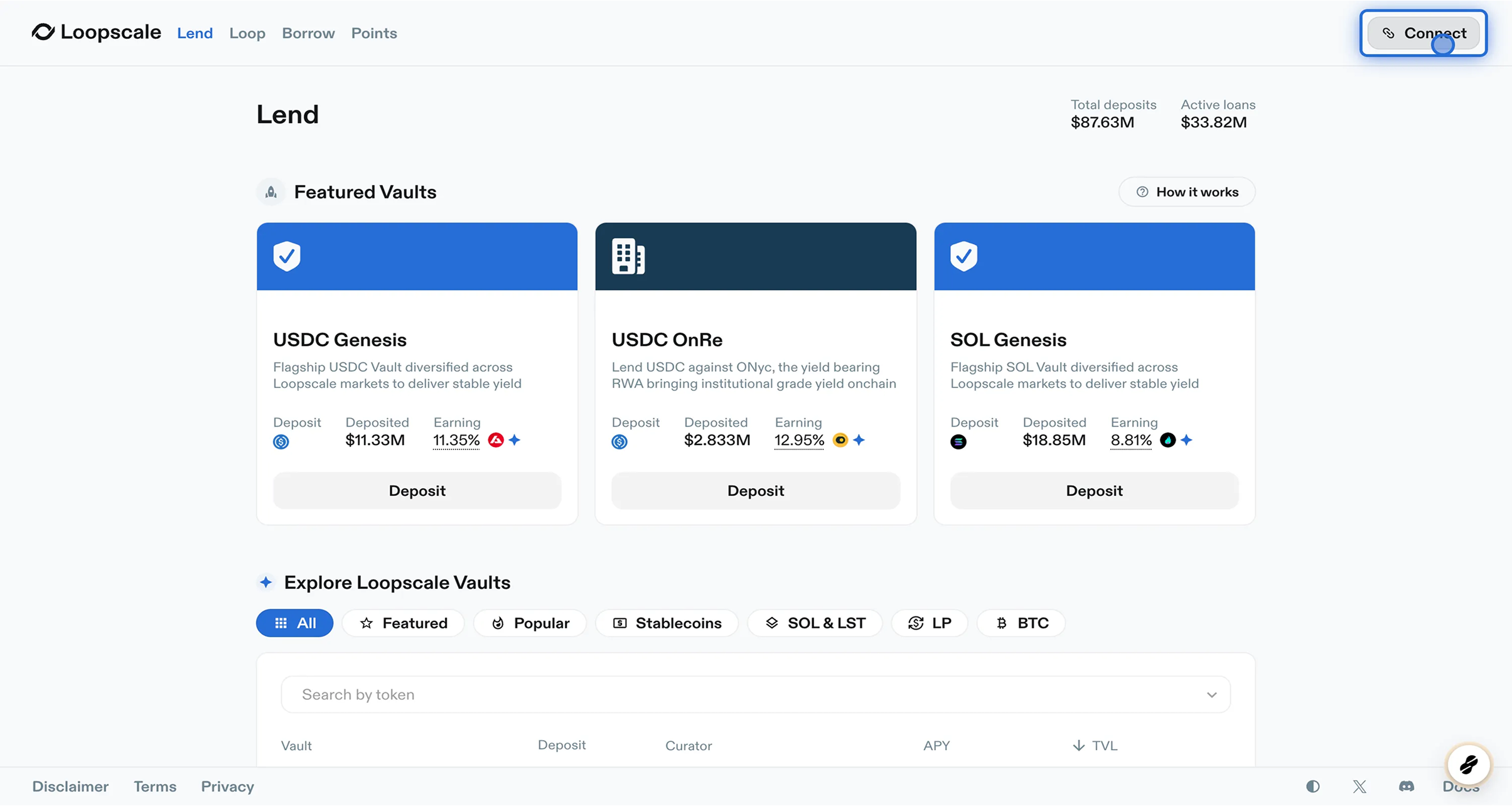
1. Open the Lend page in the Loopscale app.
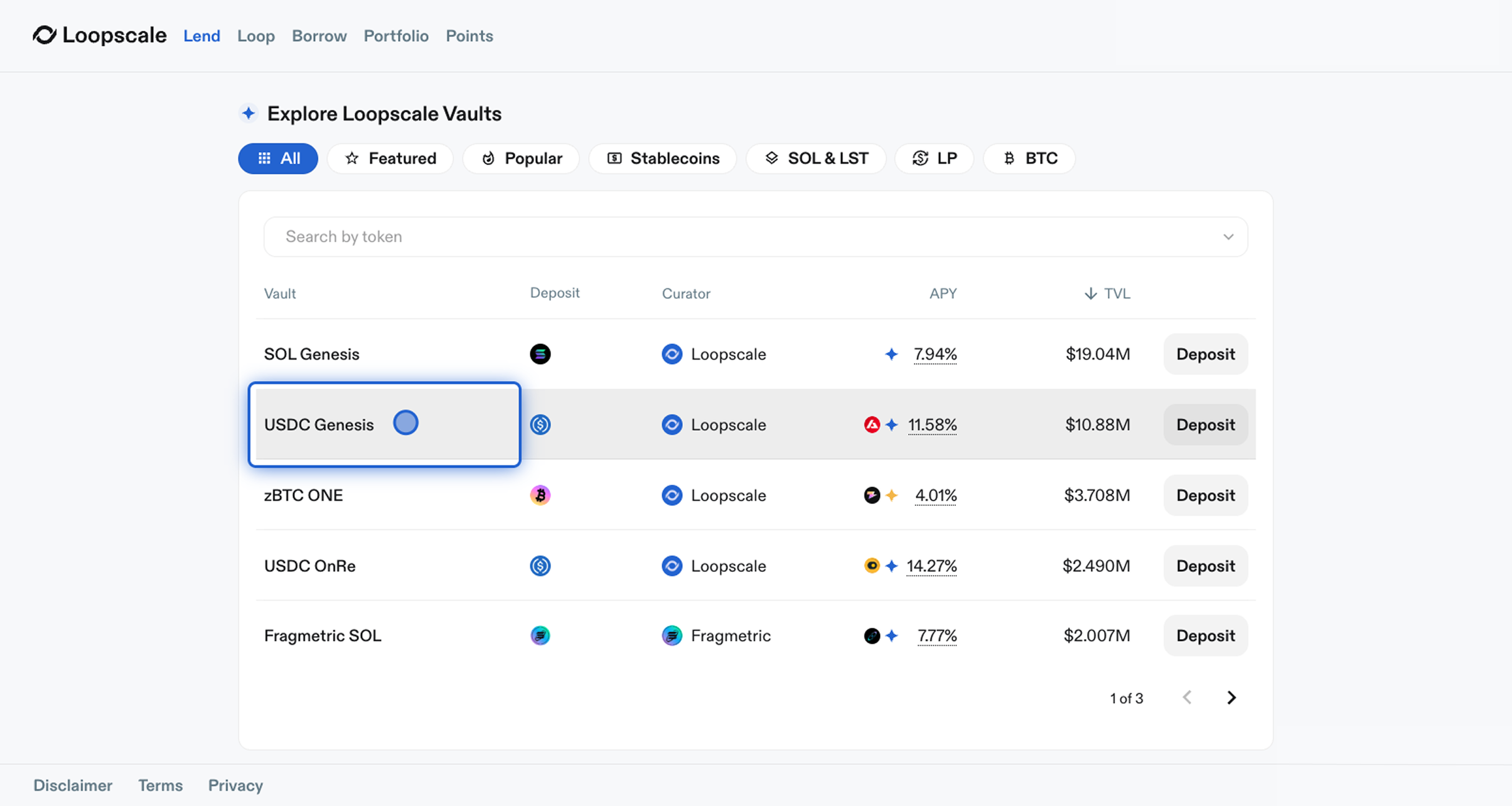
2. Select a Vault to view its details.
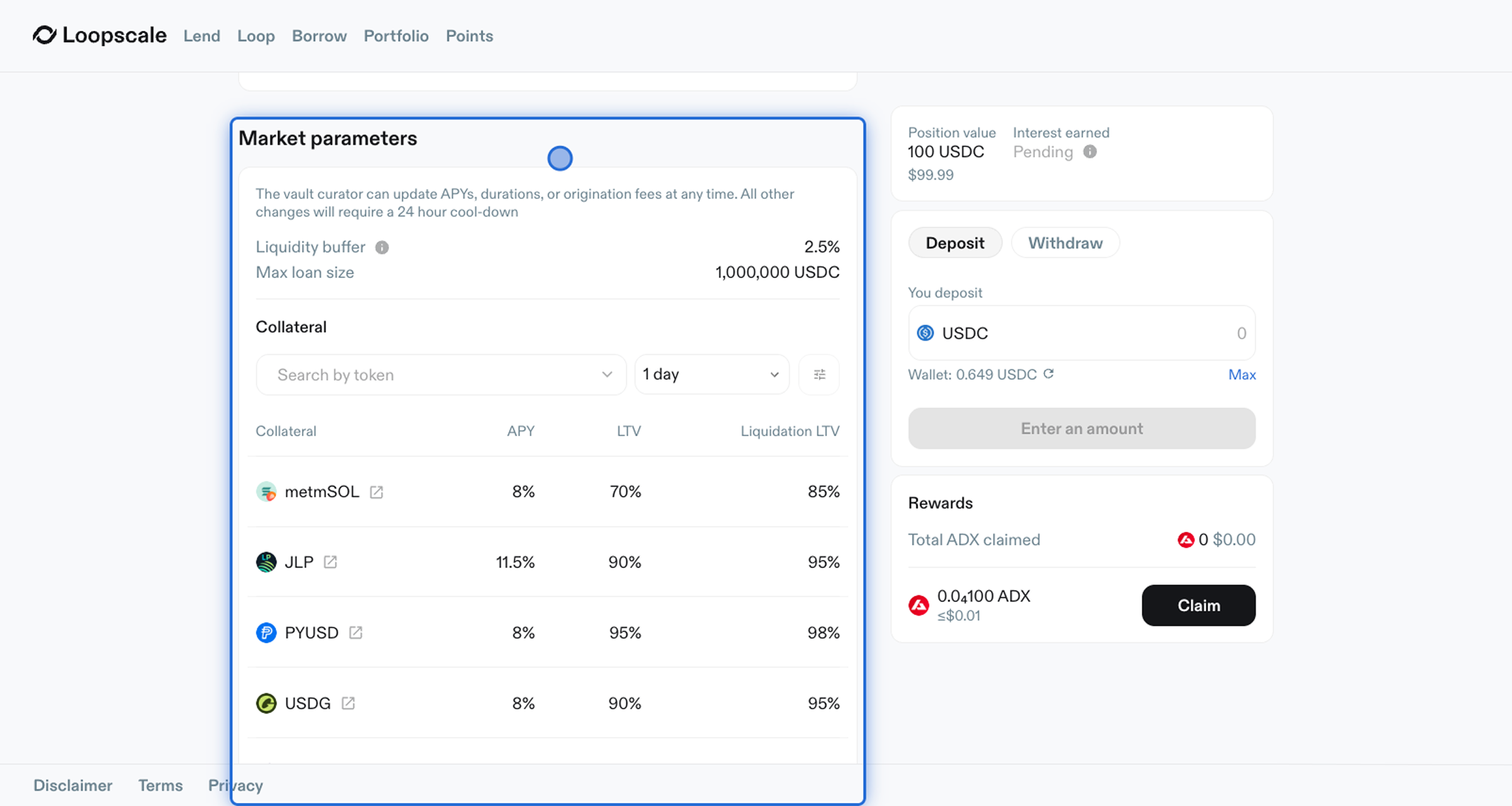
### Vault Detail Page
Review the Market Parameters section for information on eligible collateral, terms, and upcoming parameter changes.
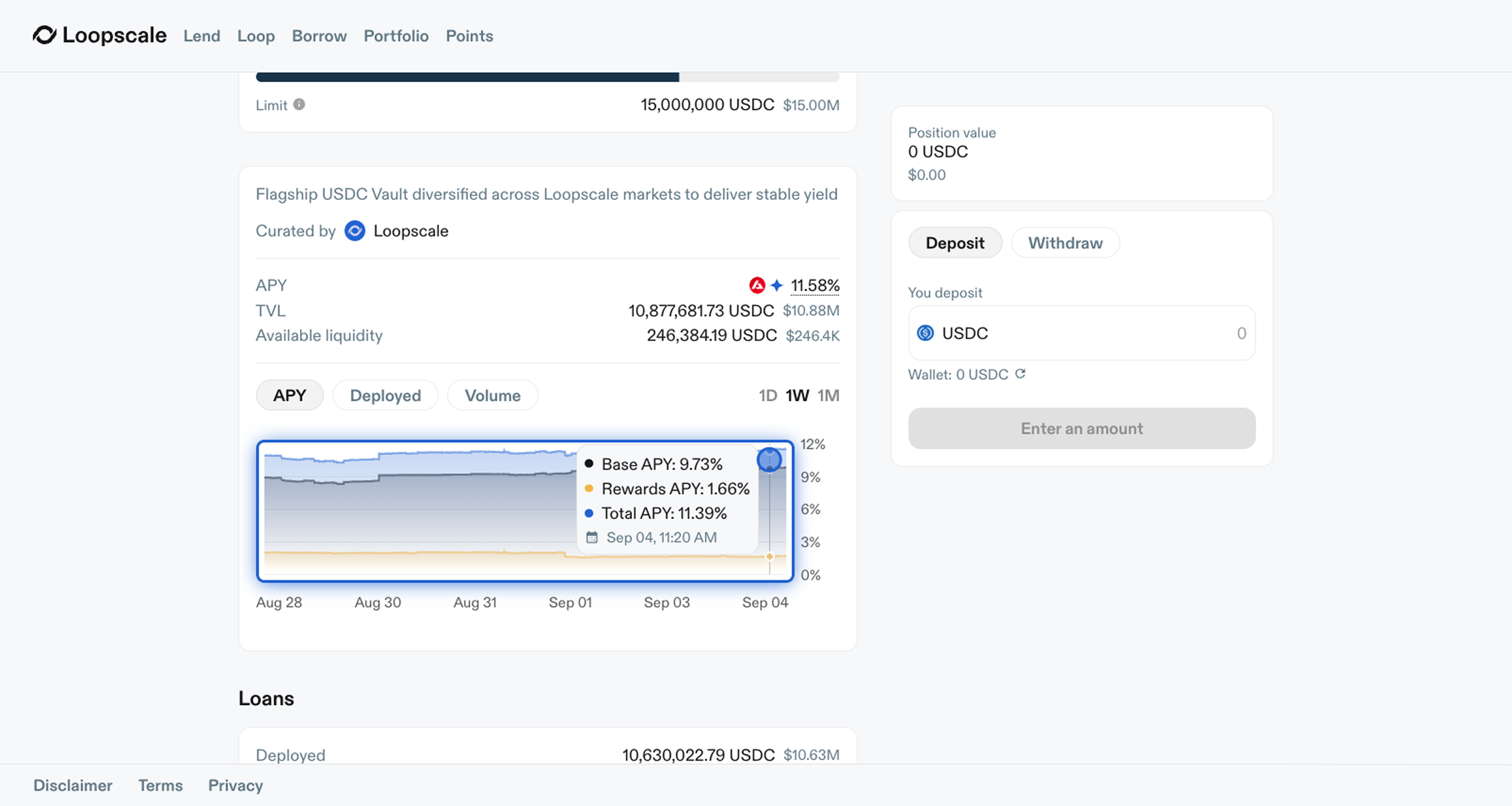
Explore such as APY, deployed capital, and loan volume in the historical charts section.
## Deposit to Vault
3. Click Connect in the top-right corner of the Loopscale app.
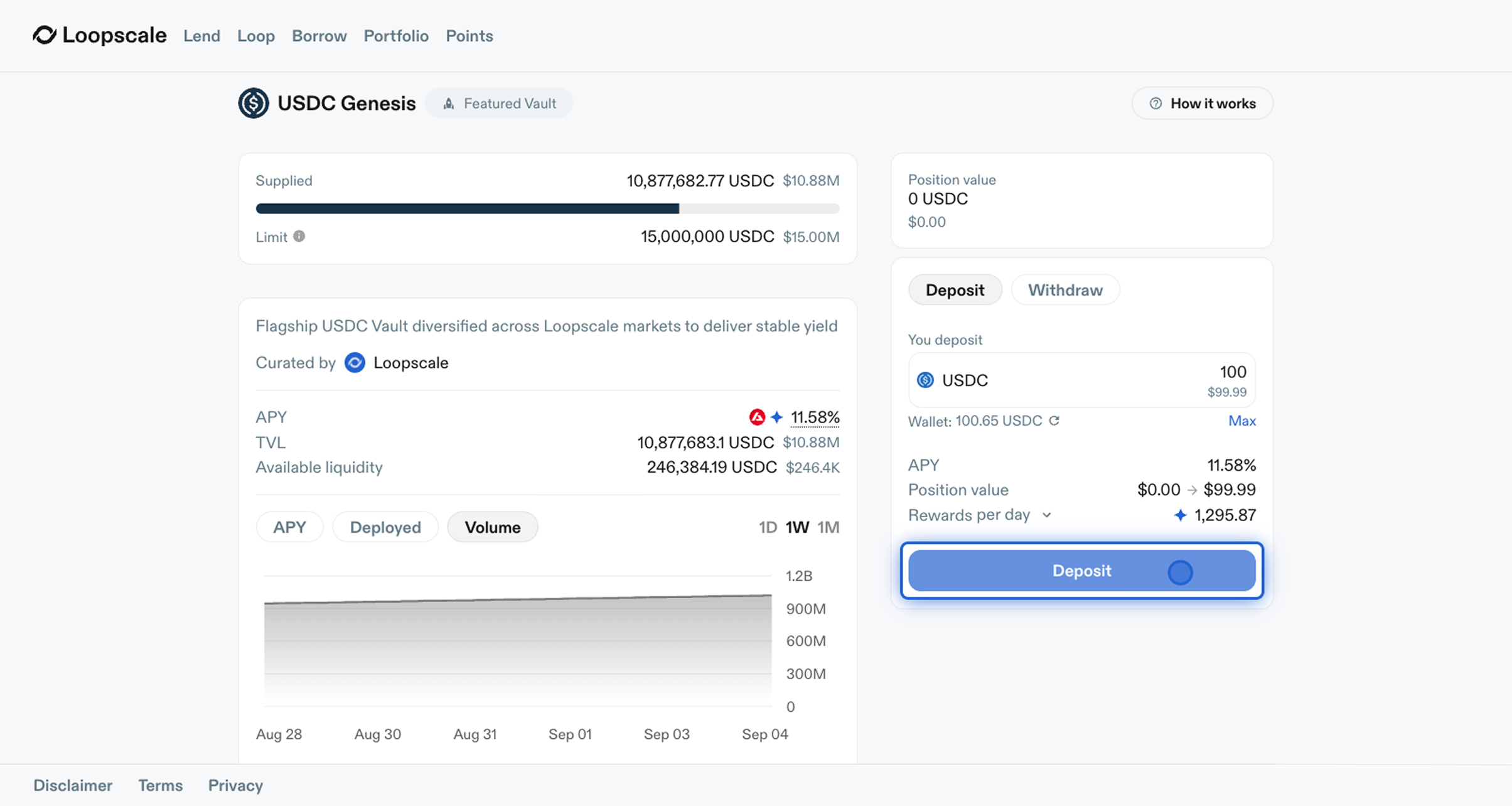
4. Click Deposit and enter the desired amount.
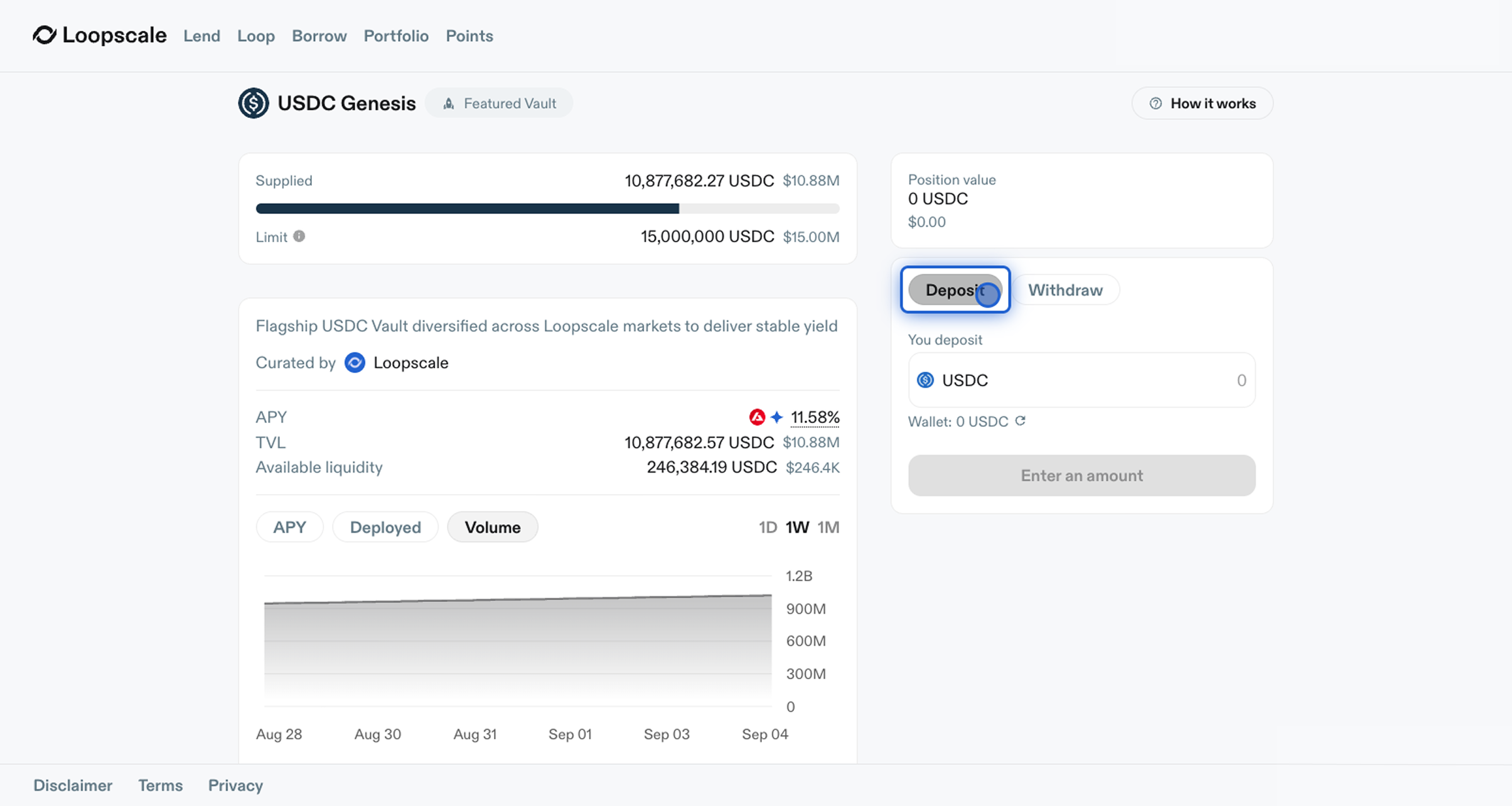
5. Confirm the deposit transaction by signing in your wallet.